Call Forwarding
How to Set Up Call Forwarding to Your Mobile
This guide provides a straightforward method for setting up call forwarding to your mobile device, ensuring you never miss important calls, even when away from your desk. It includes essential tips on customizing your call rules, such as adjusting ring times and preserving caller ID. By following these steps, you can enhance your communication efficiency and maintain professionalism during business hours. Whether you're new to call management or looking to optimize your setup, this guide is a valuable resource.
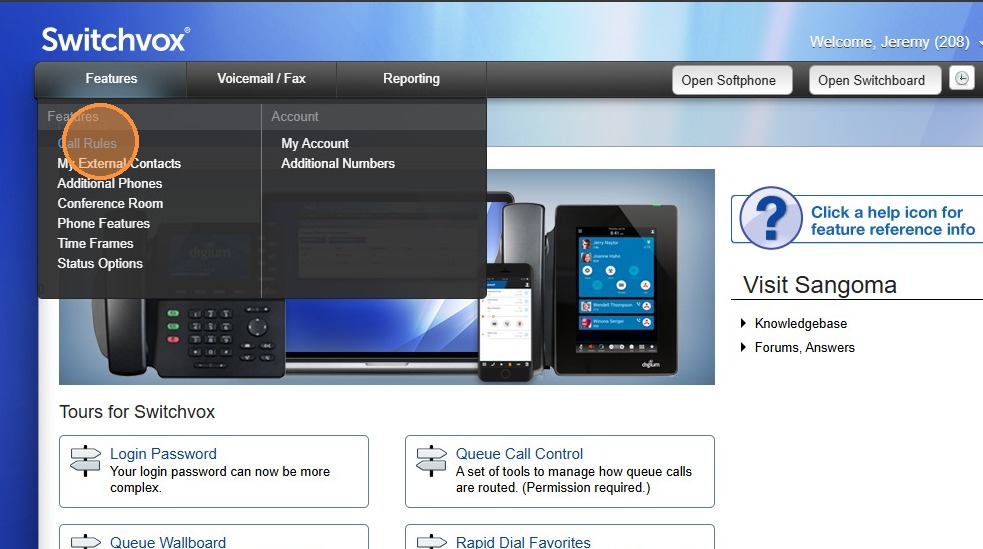
1. Hover over "Features" then Click "Call Rules"
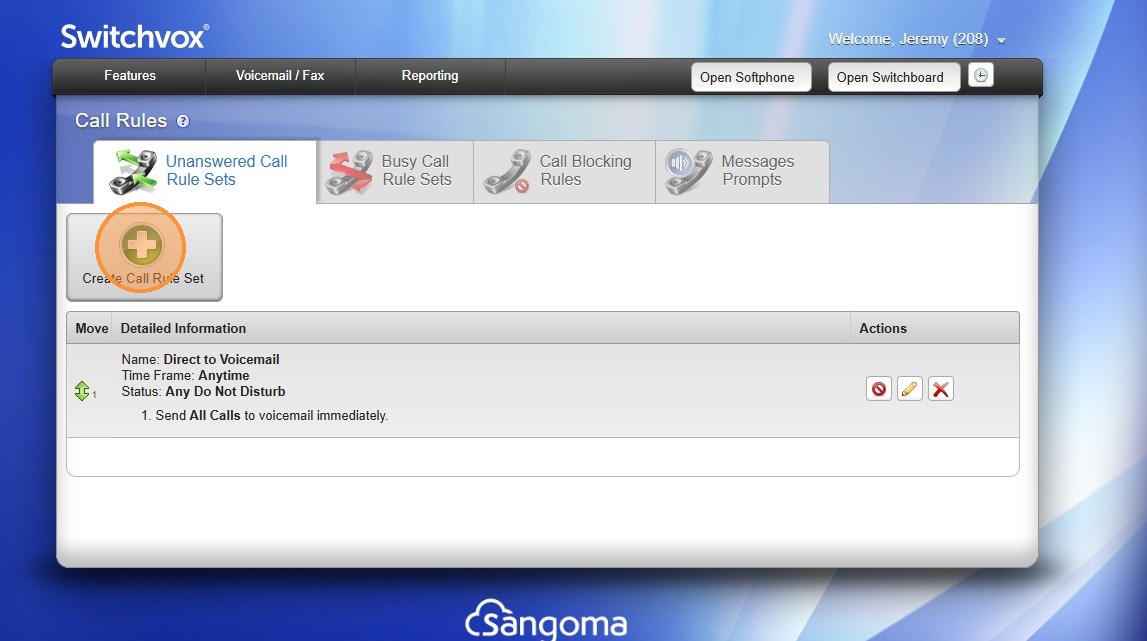
2. Click "Create Call Rule Set"
3. Click "Rule Set Name"
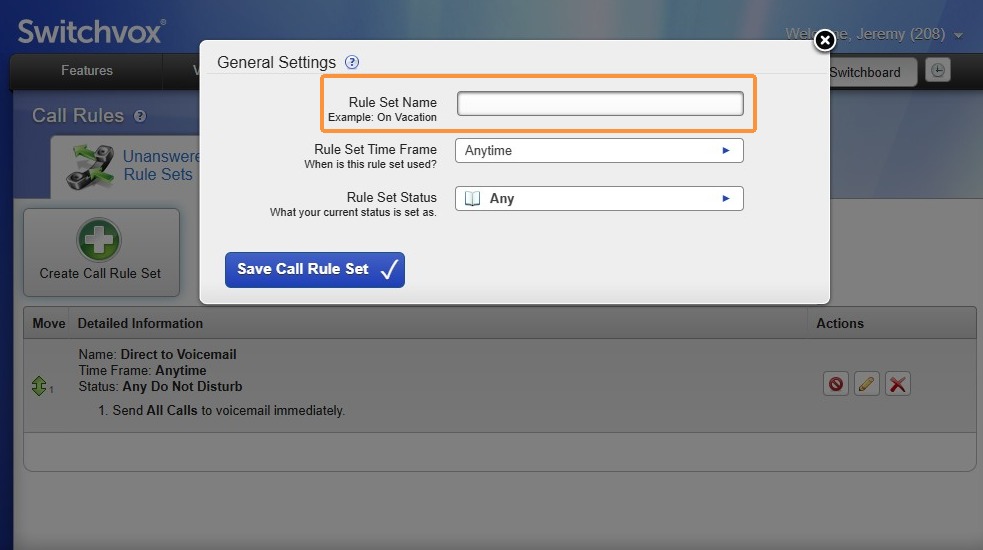
4. Enter a Rule Set Name "Forward to Mobile"
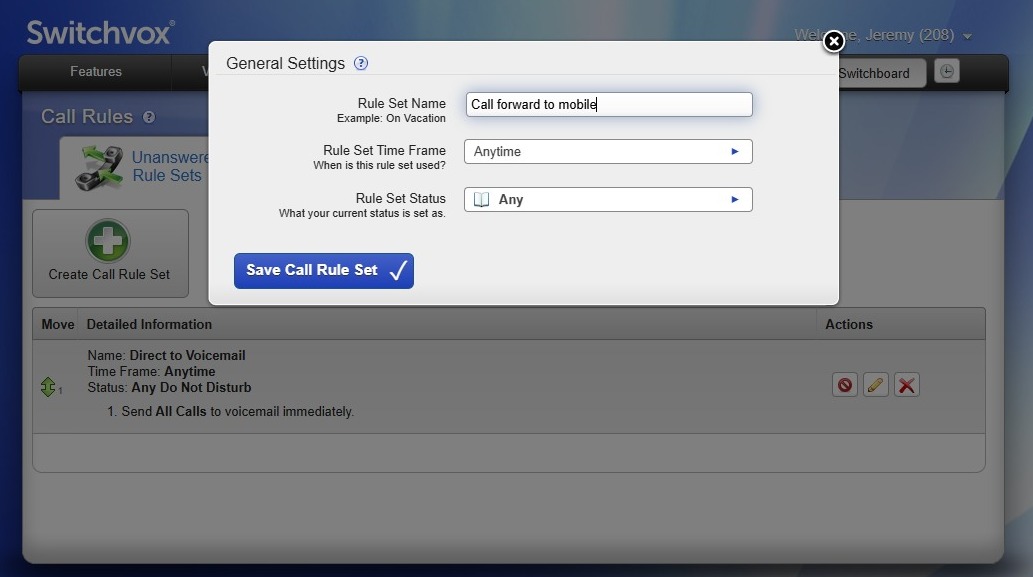
Alert: Alert! The time frame you select controls when you receive calls. Ask yourself, do I need to answer after 5pm?
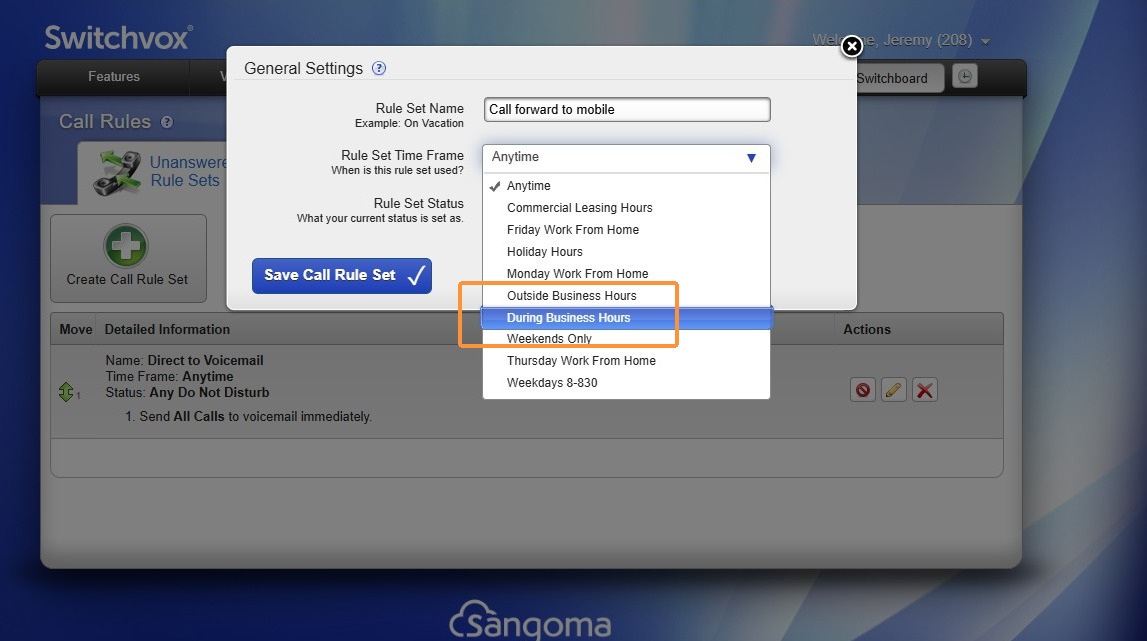
5. Click Rule Set Time Frame and Select "During Business Hours"
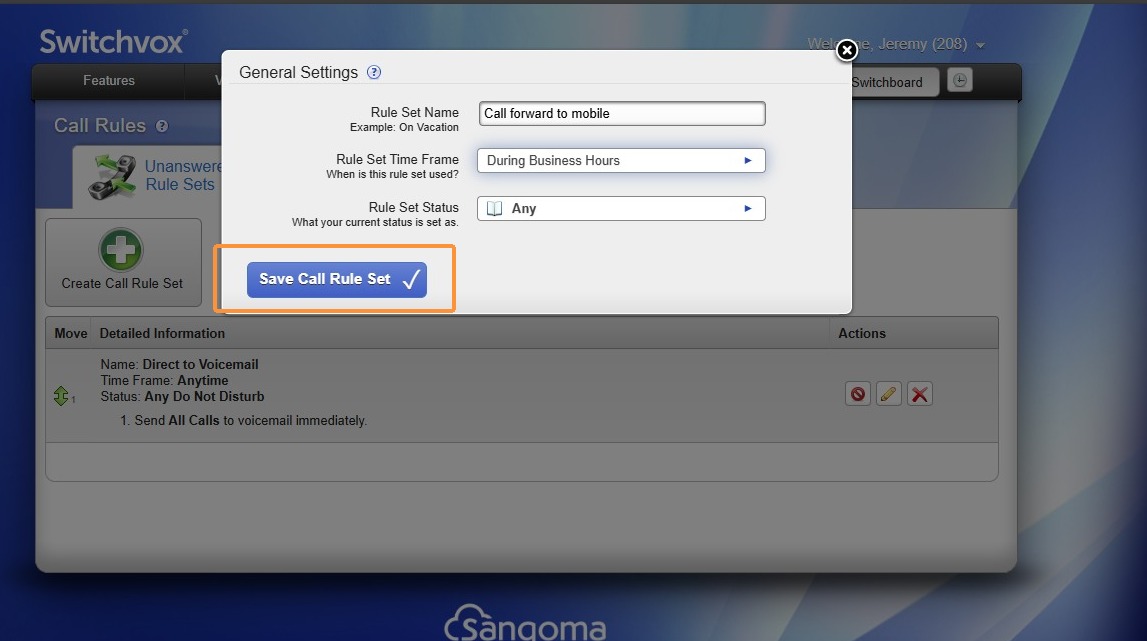
6. Click Save Call Rule Set"
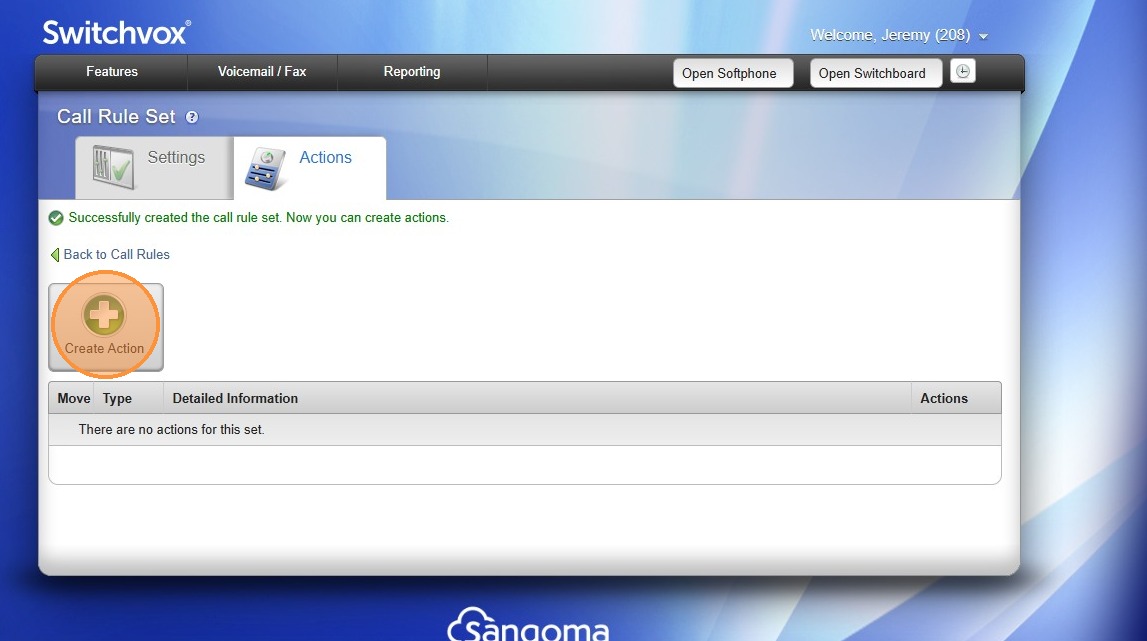
Tip: Tip! Lets create the logic for the call rule set.
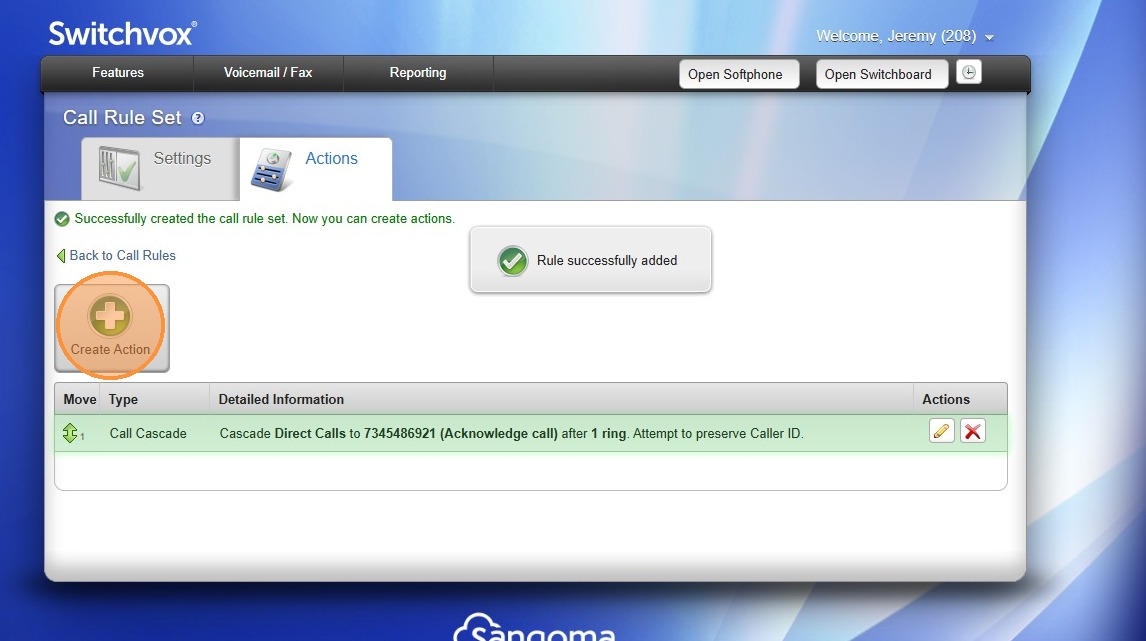
7. Click "Create Action"
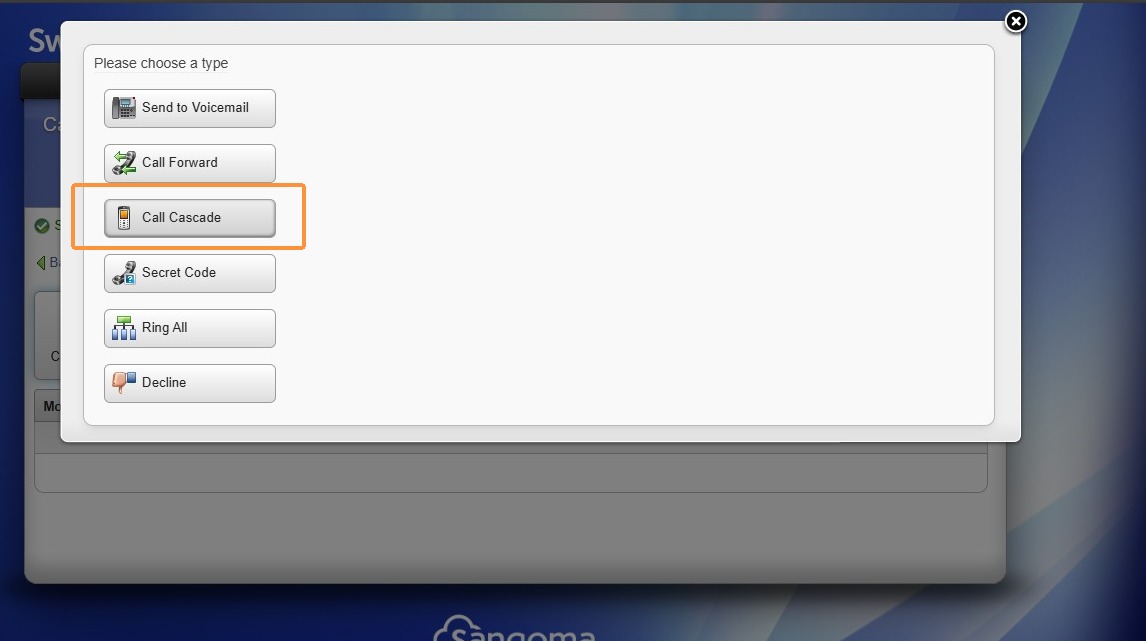
8. Select "Call Cascade"
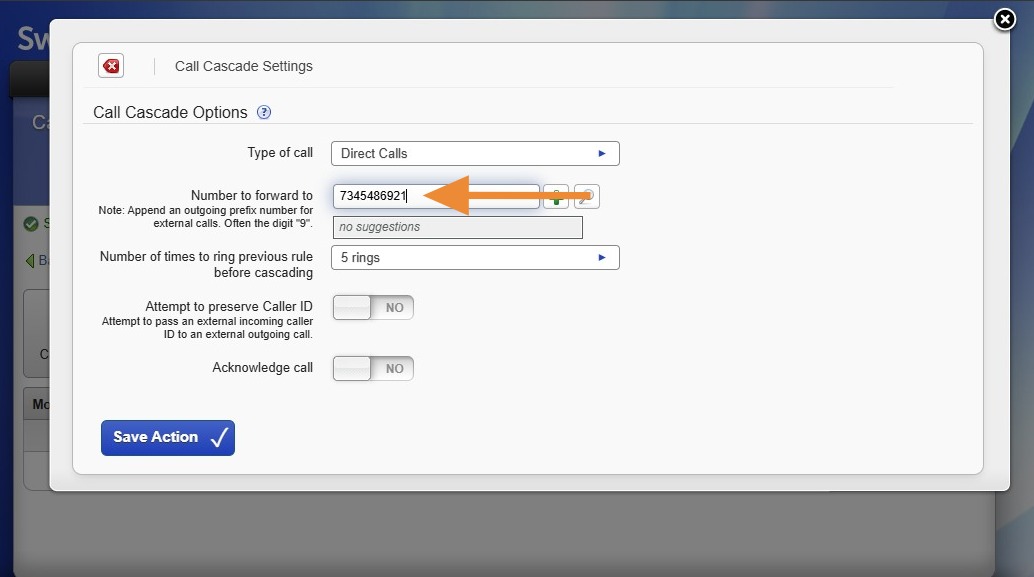
9. Enter the phone number where calls should be forwarded, hit enter.
If you answer external calls (all calls option from type of call), please give yourself more than 2 rings to answer while at your desk.
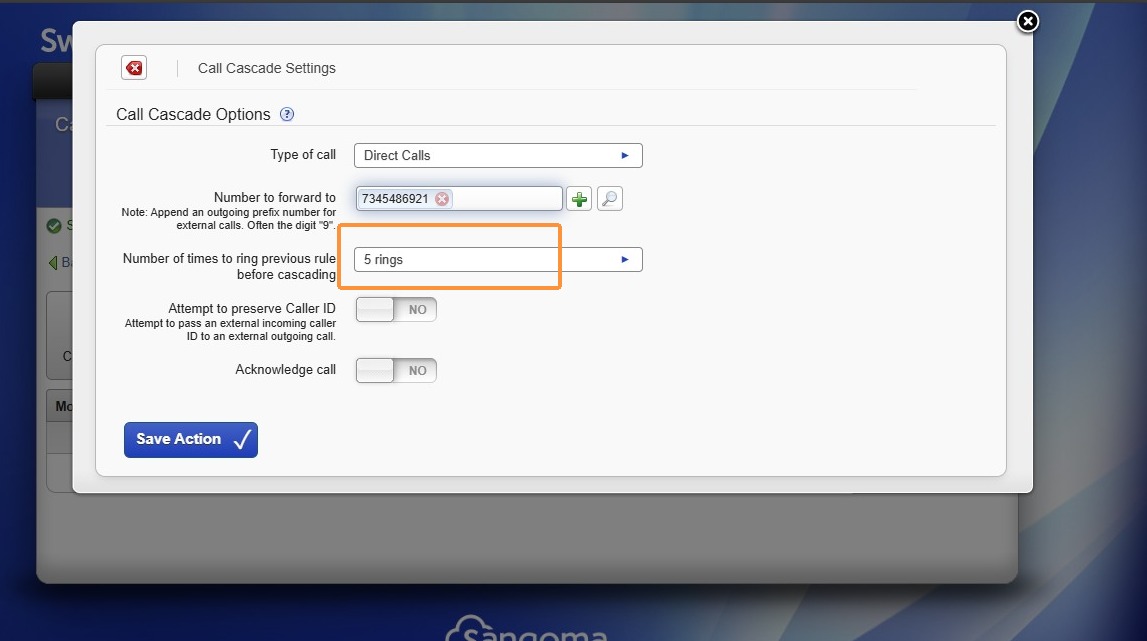
10. Change the number of rings before forwarding (2-3 works best if you sit at your desk)
11. Toggle "Preserve Caller ID" and "Acknowledge Call" to Yes
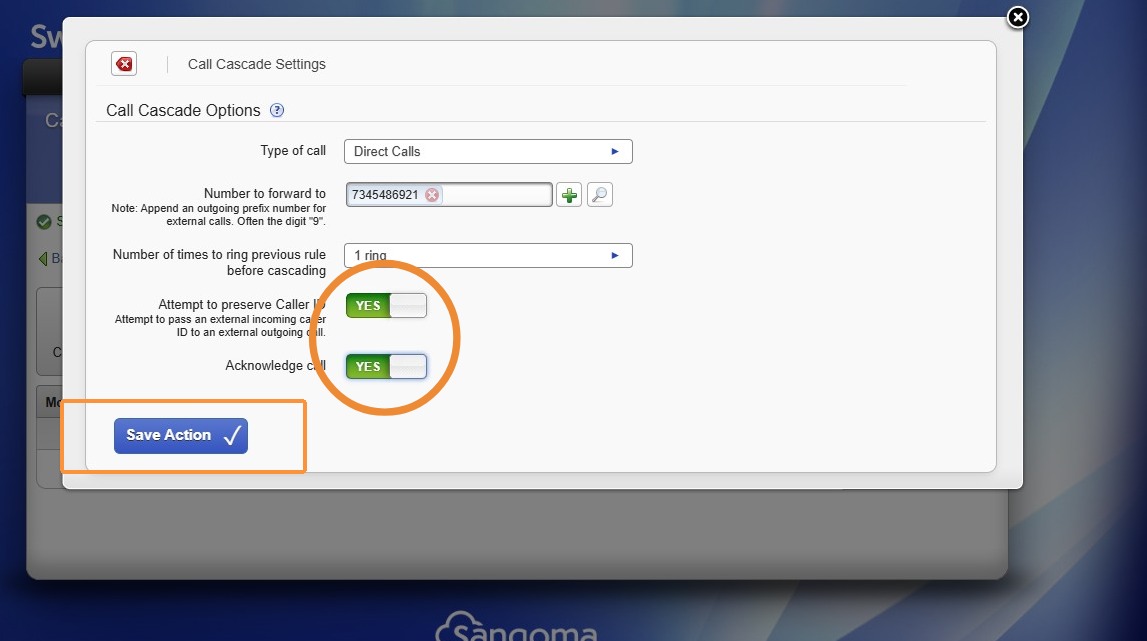
12. Click "Create Action"
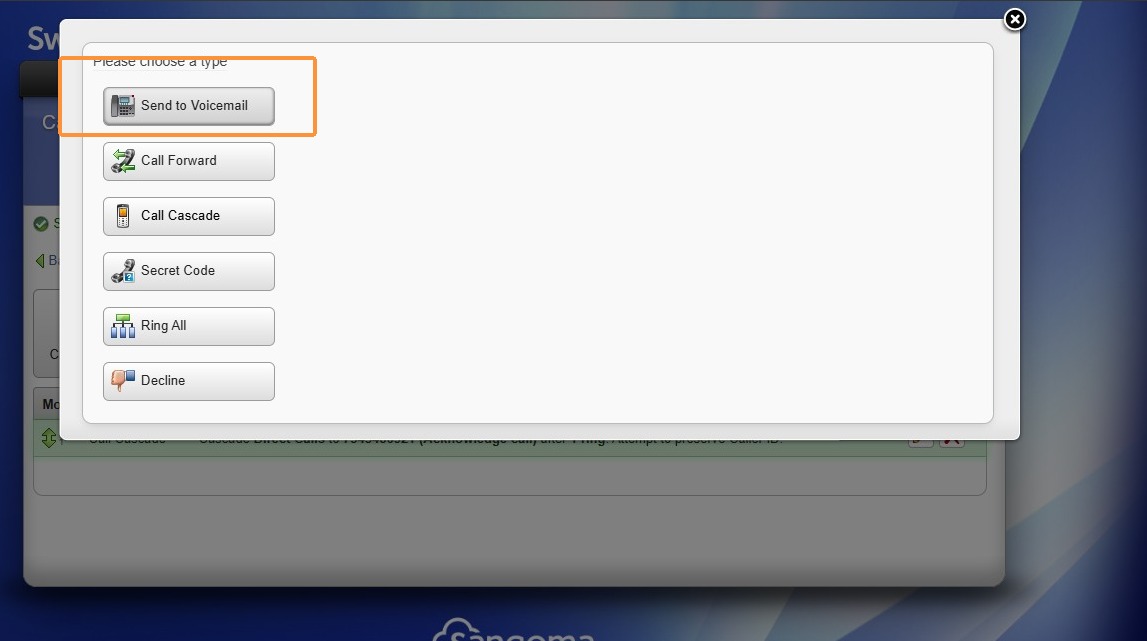
13. Click "Send to Voicemail"
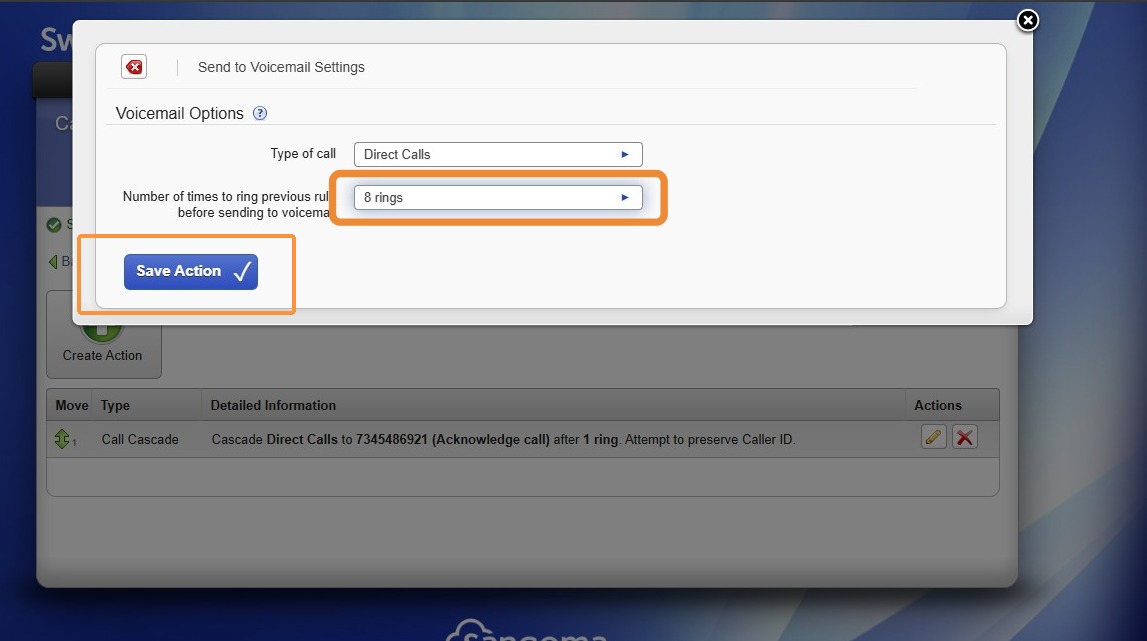
14. Change the number of times the phone rings before being sent to voicemail, 8 rings works wonders!
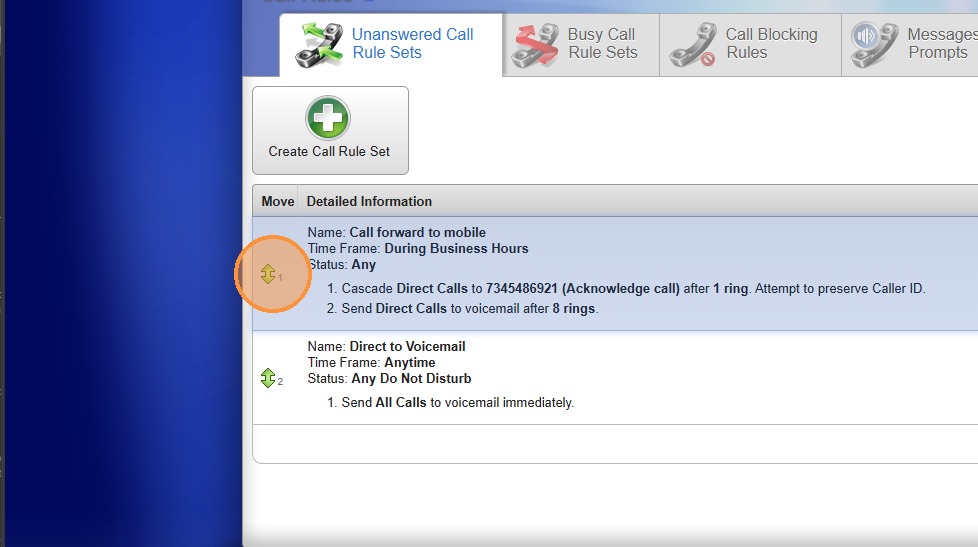
Tip: Tip! The order your call rules are listed, is the order they're actions are applied!
Stuck? Email IT@oxfordcompanies.com for assistance.
15. Click "Back to Call Rules"
Drag your new rule to the top of the list,