Shortcuts, Tips, Tricks (Public)
Shortcuts & Modifier Key Guide
A collection of useful keyboard shortcuts that work across Windows, text editors, terminals, and file explorers.
Modifier keys are keys you hold while performing another action.
Common modifier keys include:
- CTRL
- ALT
- SHIFT
- CMD (Mac – ignored in this guide for simplicity)
- Fn
These shortcuts are designed to work in most text editors, terminals, browsers, and common applications.
Text Entry & Navigation
CTRL — Word-Level Navigation
Holding CTRL changes many actions from working on a single character to working on a whole word.
| Shortcut | Function |
|---|---|
| CTRL + Left / Right | Move cursor one word at a time |
| CTRL + Backspace | Delete the previous word |
| CTRL + Delete | Delete the next word |
| CTRL + Up / Down | Move cursor one paragraph at a time |
| CTRL + Home | Move to the start of a document |
| CTRL + End | Move to the end of a document |
| CTRL + Space | Remove formatting from selected text |
| CTRL + Enter | Insert page break (Word and similar editors) |
| CTRL + Click | Highlight an entire sentence |
SHIFT — Text Selection Modifier
SHIFT is commonly used to highlight text and modify existing commands.
| Shortcut | Function |
|---|---|
| SHIFT + Arrow Keys | Highlight text |
| CTRL + SHIFT + V | Paste text without formatting |
| SHIFT + Enter | Insert a new line without submitting a form or creating extra spacing |
Example: Useful in comment boxes or the Google search bar.
Fn Key Shortcuts
Some keyboards use the Fn key for navigation shortcuts.
| Shortcut | Function |
|---|---|
| Fn + Left | Home |
| Fn + Right | End |
| Fn + Up | Page Up |
| Fn + Down | Page Down |
Tab Key
| Shortcut | Function |
|---|---|
| TAB | Indent bullet point |
| SHIFT + TAB | Remove one indent level |
Mouse Shortcuts
| Action | Result |
|---|---|
| Double-click | Highlight an entire word |
| Triple-click | Highlight an entire sentence, paragraph, or field |
| Double-click + drag | Highlight multiple words |
| Triple-click + drag | Highlight multiple paragraphs |
| CTRL + Click + drag | Highlight text sentence-by-sentence |
| Drag highlighted text | Move highlighted text |
| Drag highlighted text to another app | Copy text between programs |
File Explorer Shortcuts
File Drag Actions
| Shortcut | Action |
|---|---|
| CTRL + Drag file | Copy file |
| SHIFT + Drag file | Move file |
| ALT + Drag file | Create shortcut |
| CTRL + SHIFT + Drag | Create shortcut |
File Selection
| Shortcut | Action |
|---|---|
| CTRL + Click | Select or deselect individual files |
| Drag selection box | Select multiple files |
| CTRL + Drag selection | Add files to selection |
| SHIFT + Drag selection | Add files to selection |
Navigation
| Shortcut | Action |
|---|---|
| Arrow Keys | Move selection |
| CTRL + Arrow Keys | Move active file without losing selection |
| Space (or CTRL + Space) | Add file to selection |
Browser & Tab Shortcuts
These shortcuts work in File Explorer, browsers, and many programs.
| Shortcut | Action |
|---|---|
| CTRL + T | Open new tab |
| CTRL + W | Close tab |
| CTRL + TAB | Next tab |
| CTRL + SHIFT + TAB | Previous tab |
| CTRL + N | Open new window |
CTRL + W also closes the current document in programs like Microsoft Word.
Process Control
| Shortcut | Action |
|---|---|
| CTRL + C | Stop running process or script |
Miscellaneous Windows Shortcuts
| Shortcut | Function |
|---|---|
| CTRL + ALT + TAB | Window switcher that stays open |
| Win + SHIFT + S | Open Snipping Tool |
| Win + P | Open display projection menu |
| Win + ; | Emoji & clipboard panel |
| CTRL + SHIFT + V | Paste without formatting |
Tips
These shortcuts help you:
Call Forwarding
How to Set Up Call Forwarding to Your Mobile
This guide provides a straightforward method for setting up call forwarding to your mobile device, ensuring you never miss important calls, even when away from your desk. It includes essential tips on customizing your call rules, such as adjusting ring times and preserving caller ID. By following these steps, you can enhance your communication efficiency and maintain professionalism during business hours. Whether you're new to call management or looking to optimize your setup, this guide is a valuable resource.
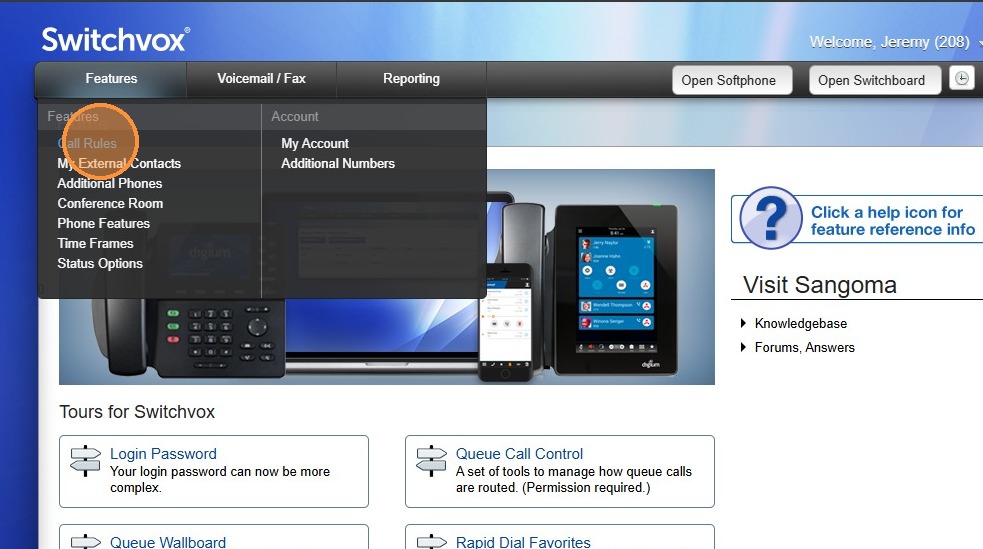
1. Hover over "Features" then Click "Call Rules"
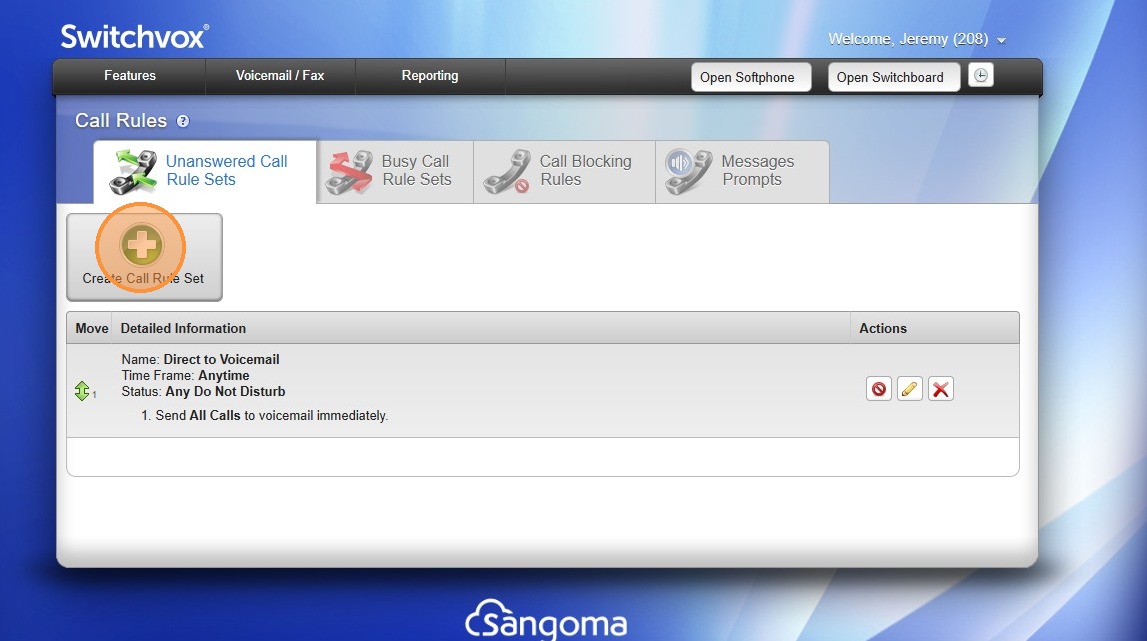
2. Click "Create Call Rule Set"
3. Click "Rule Set Name"
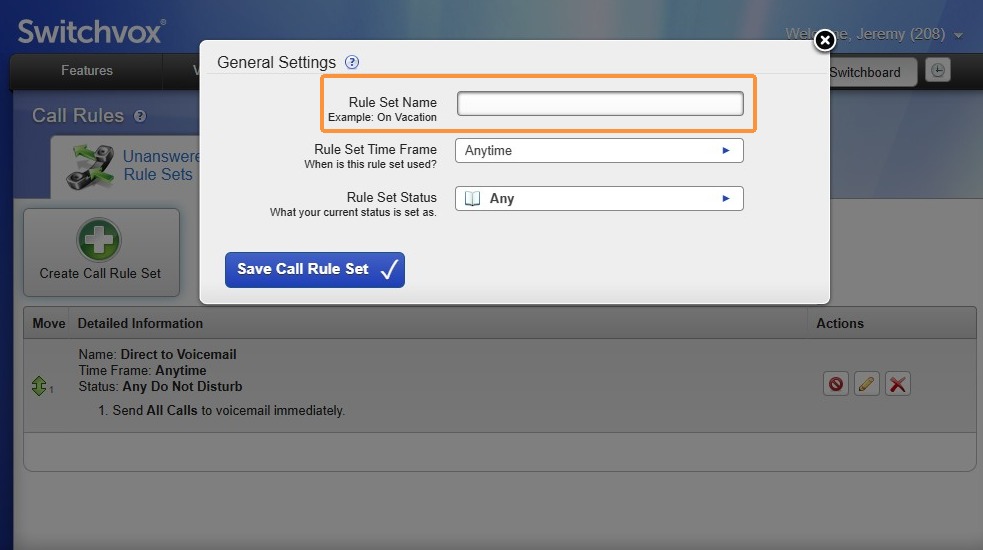
4. Enter a Rule Set Name "Forward to Mobile"
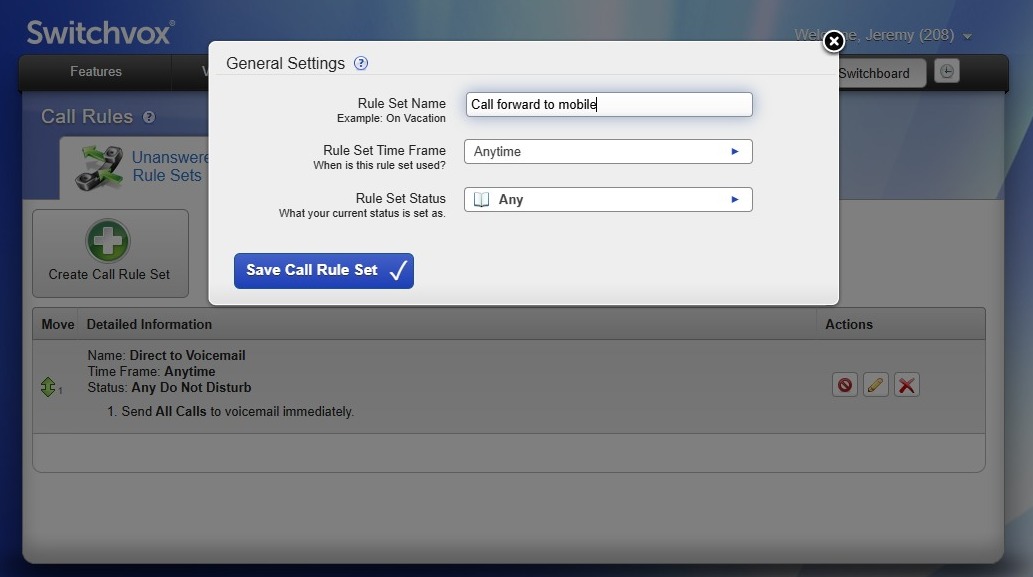
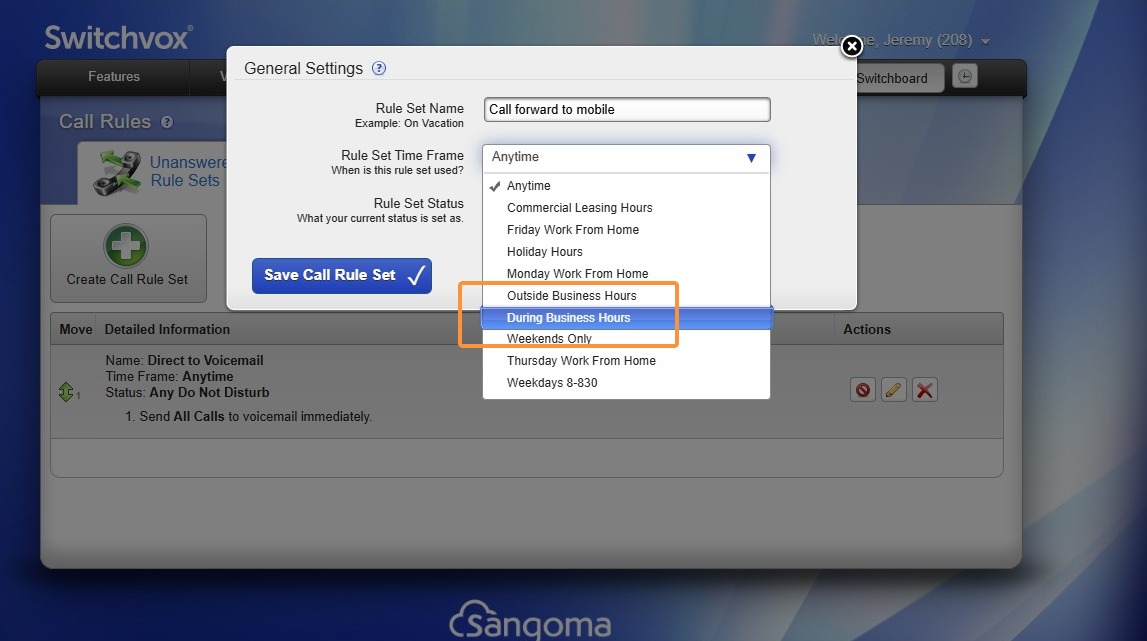
Alert! The time frame you select controls when you receive calls. Ask yourself, do I need to answer after 5pm?
5. Click Rule Set Time Frame and Select "During Business Hours"
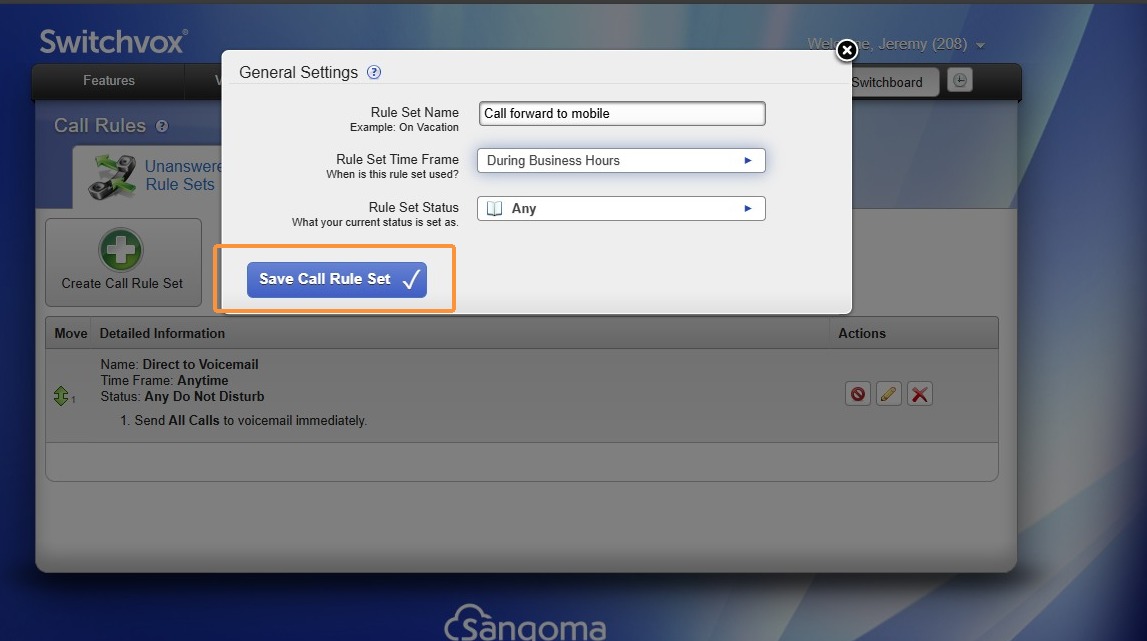
6. Click Save Call Rule Set"
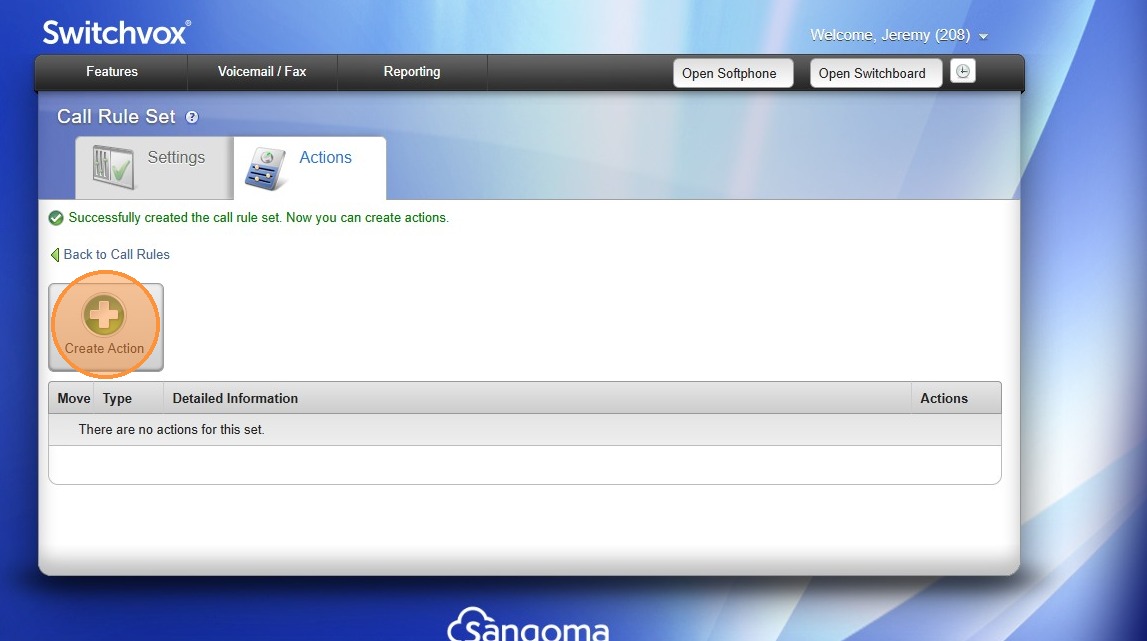
Tip! Lets create the logic for the call rule set.
7. Click "Create Action"
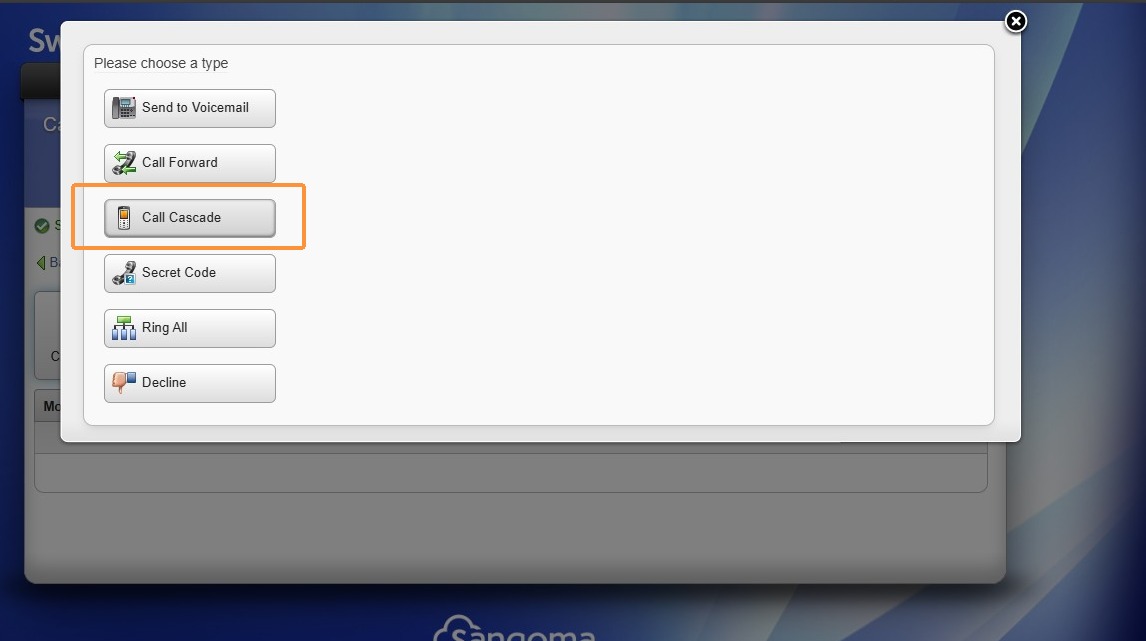
8. Select "Call Cascade"
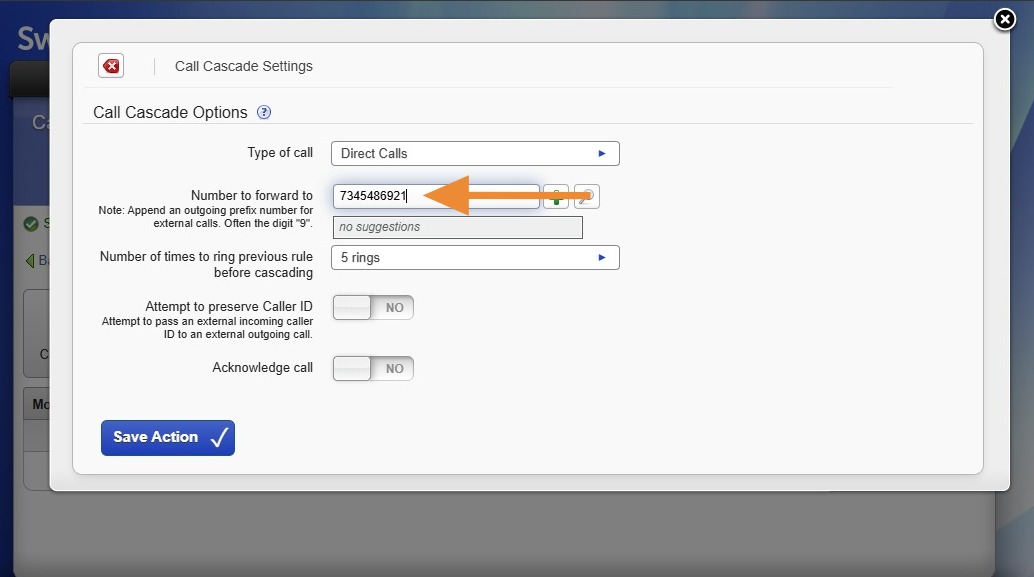
9. Enter the phone number where calls should be forwarded, hit enter.
If you answer external calls (all calls option from type of call), please give yourself more than 2 rings to answer while at your desk.
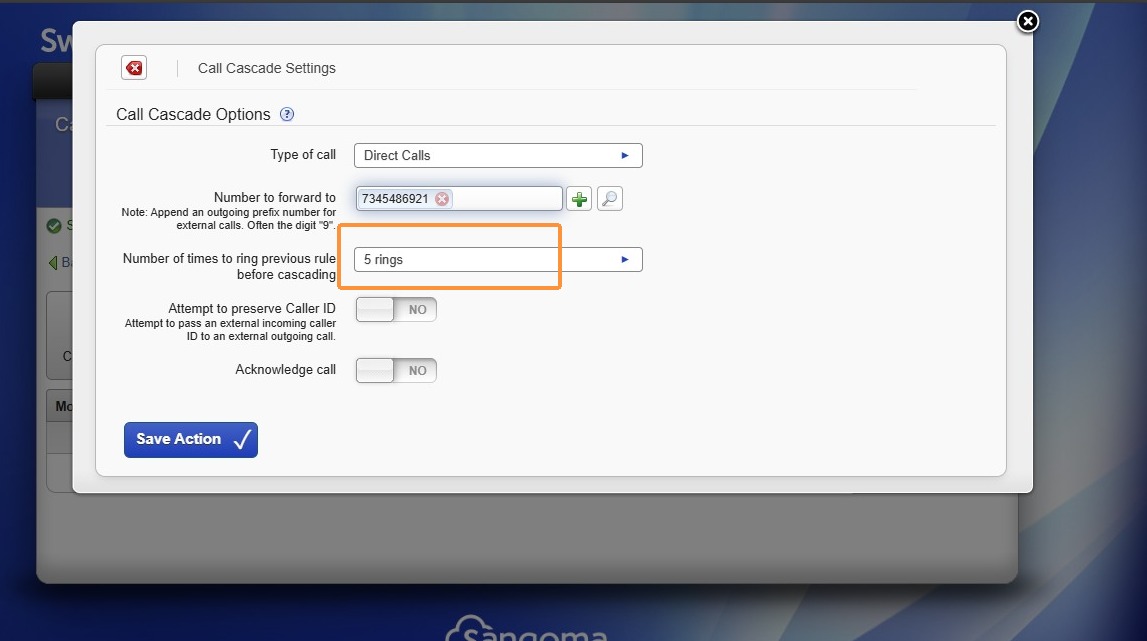
10. Change the number of rings before forwarding (2-3 works best if you sit at your desk)
11. Toggle "Preserve Caller ID" and "Acknowledge Call" to Yes
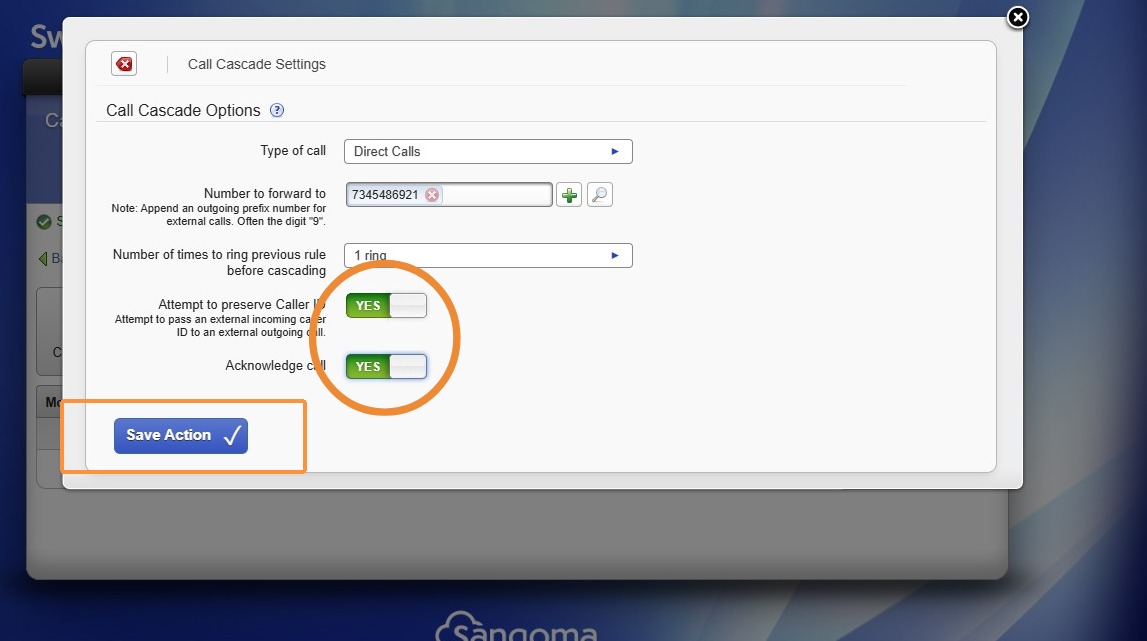
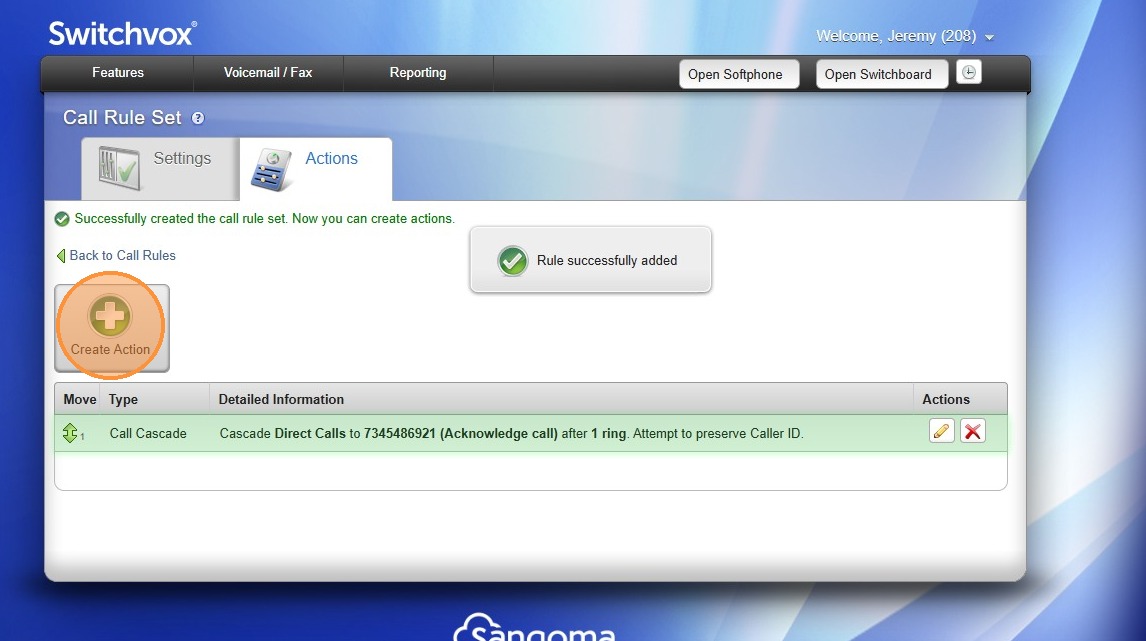
12. Click "Create Action"
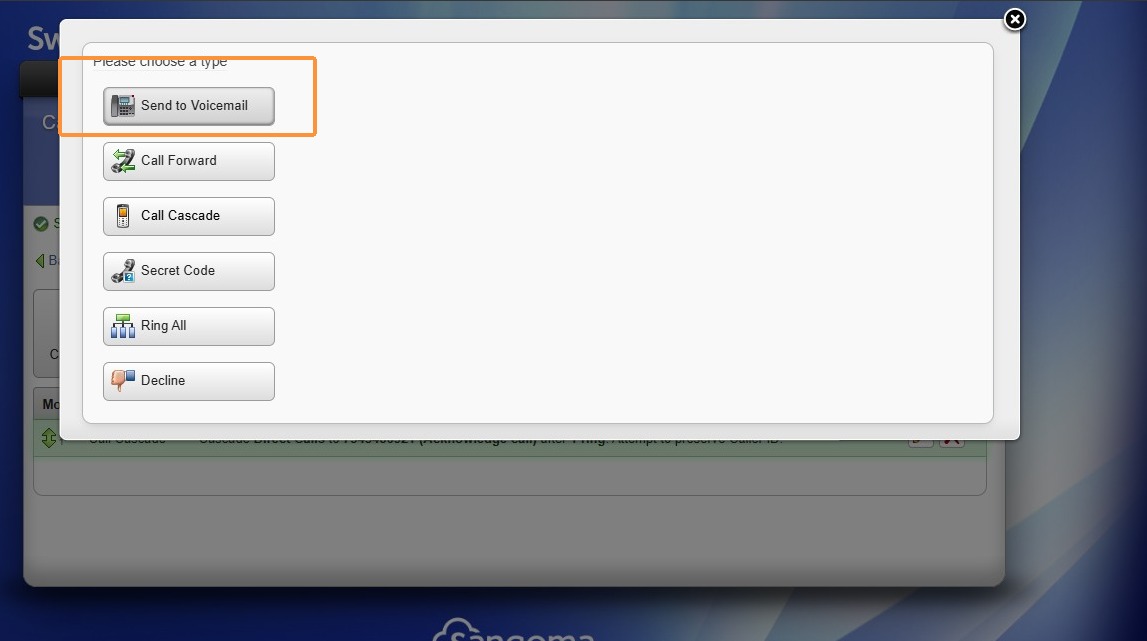
13. Click "Send to Voicemail"
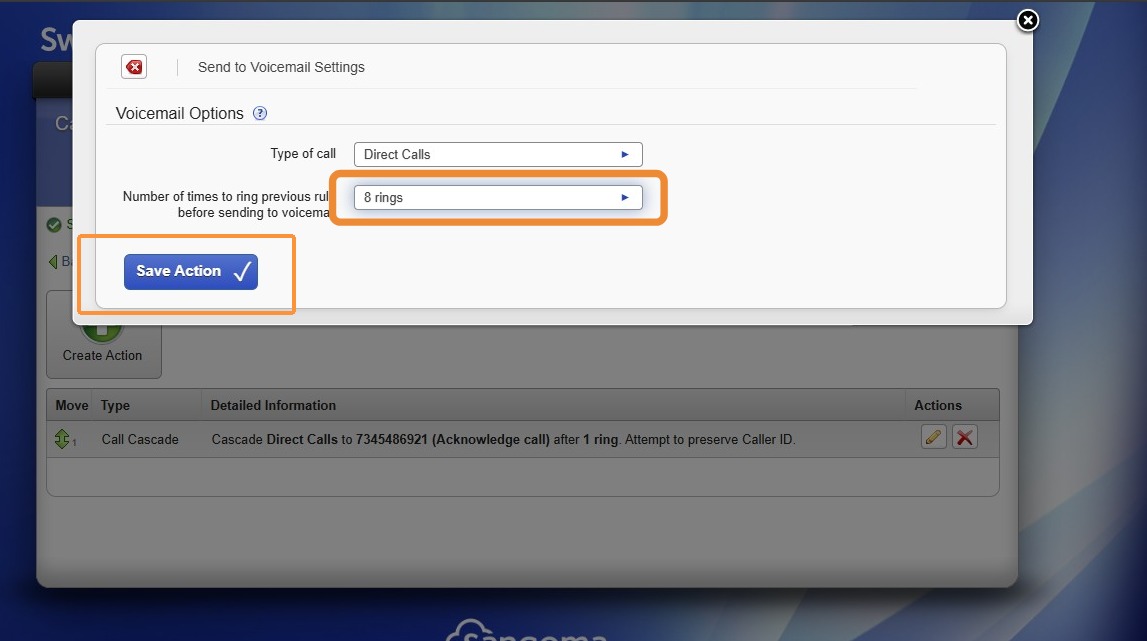
14. Change the number of times the phone rings before being sent to voicemail, 8 rings works wonders!
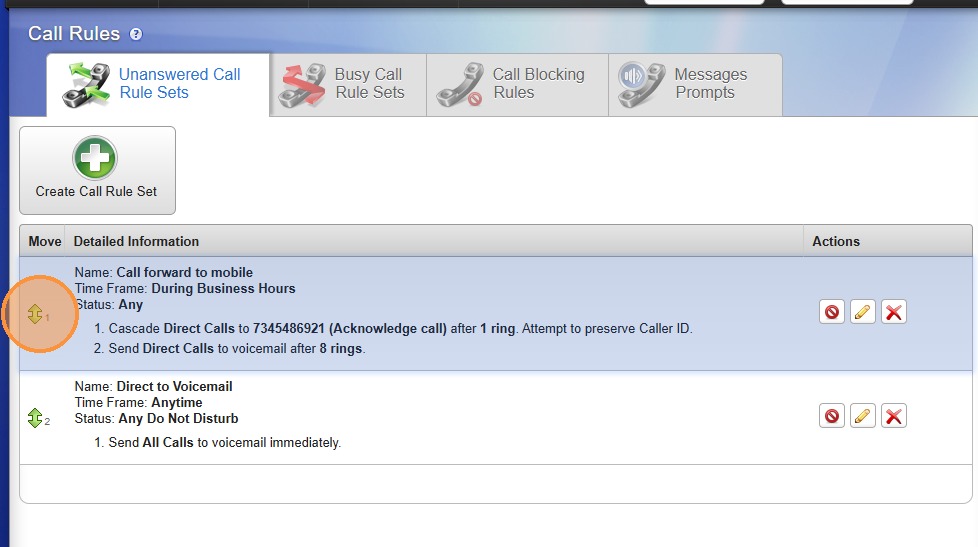
The order your call rules are listed, is the order they're actions are applied!
Stuck? Email IT@oxfordcompanies.com for assistance. Thank you!
15. Click "Back to Call Rules" Drag the new rule to the top of the list.
Add "BCC and From" fields to Outlook
How to Enable Bcc and From Fields in Outlook
Questions or comments? Send us an Email at IT@oxfordcompanies.com Thank you!
Learn how to customize your email composition window by adding the Bcc and From fields. This guide helps you manage your sender identity and maintain recipient privacy during your email workflow.
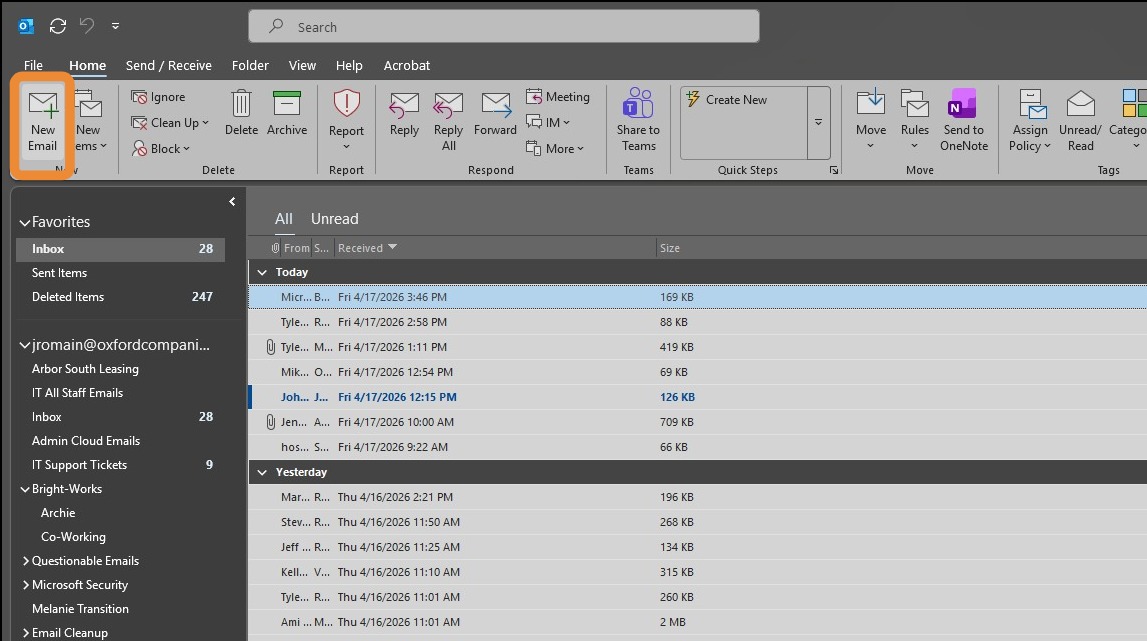
1. Click "New Email" to open a new message window.
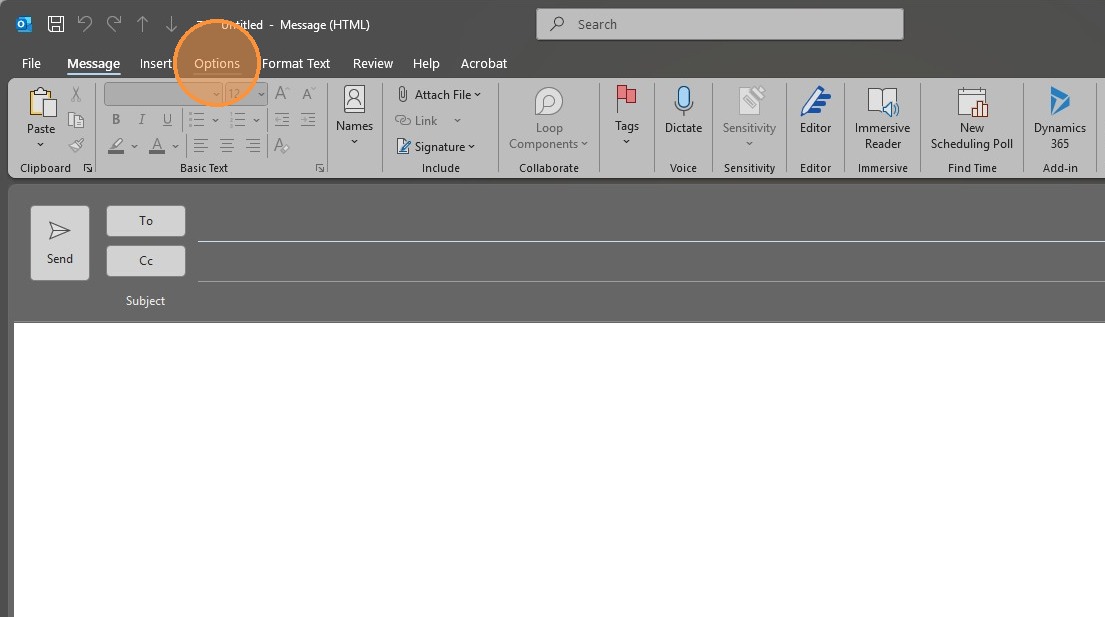
2. Select the "Options" tab in the top ribbon.
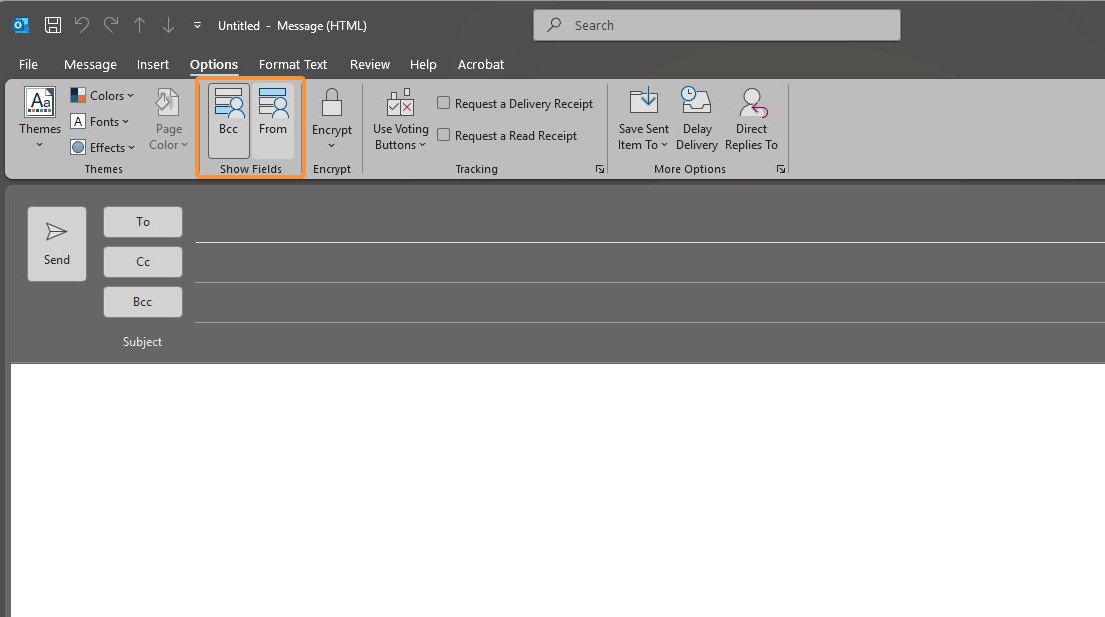
3. Click "BCC" and "From" to enable these options.
Article created by Jeremy Romain
New Page
How To Set Up Automatic Replies In Outlook
Made by Jeremy Romain with Scribe
Learn how to configure out-of-office responses for both internal and external email recipients. This guide simplifies the process of managing your communication status to ensure your colleagues and clients are notified when you are away.
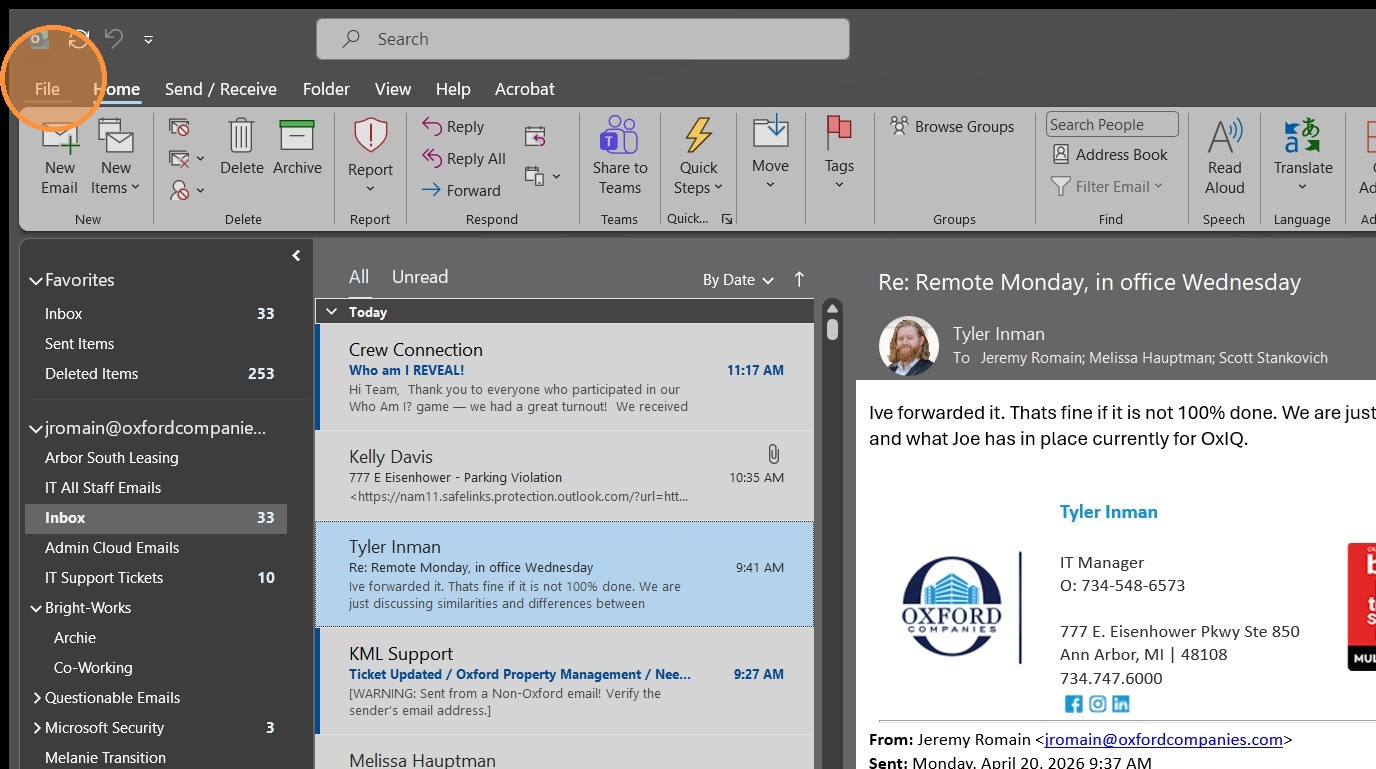
1. Click "File"
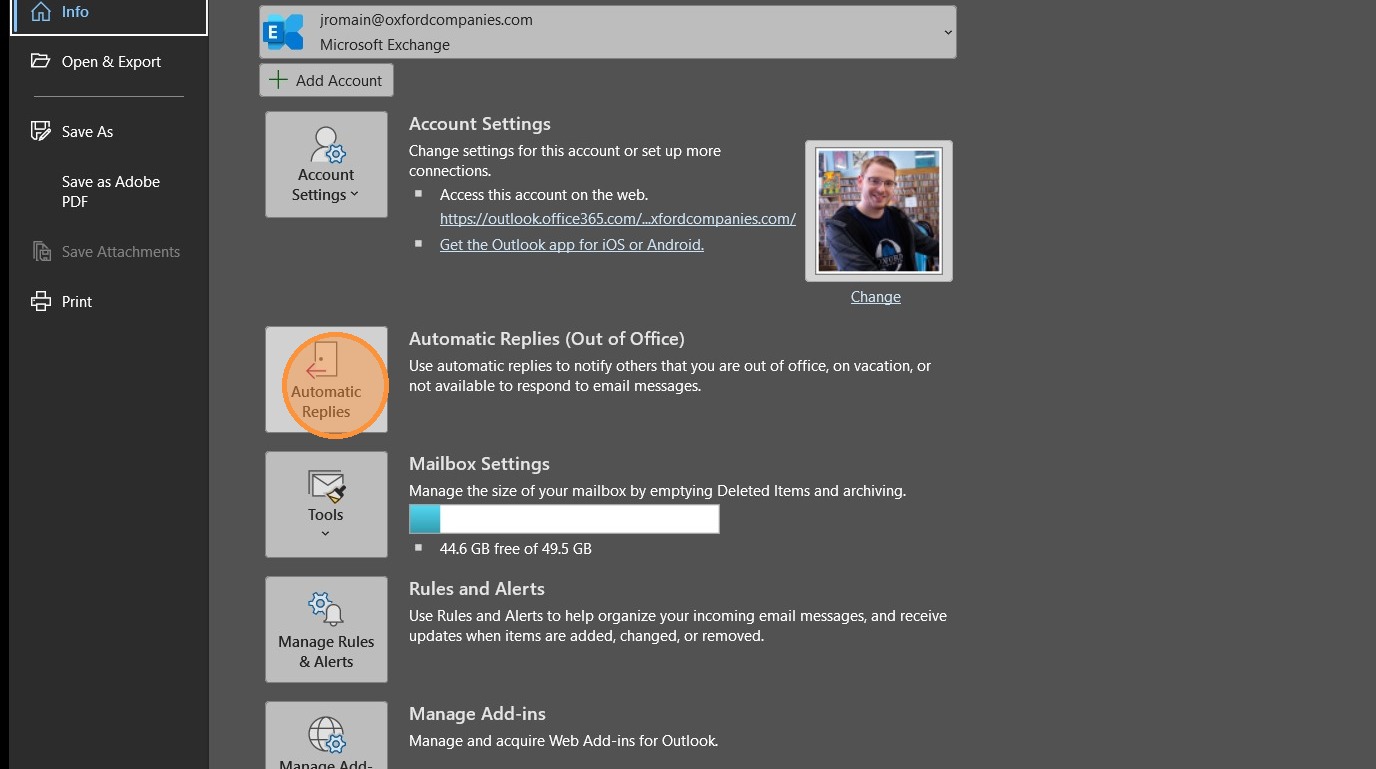
2. Click "Automatic Replies"
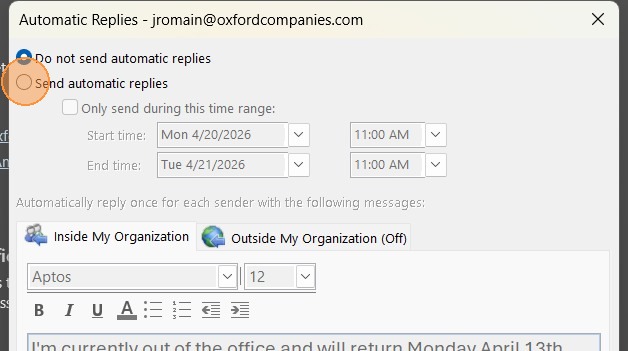
3. Select "Send automatic replies"
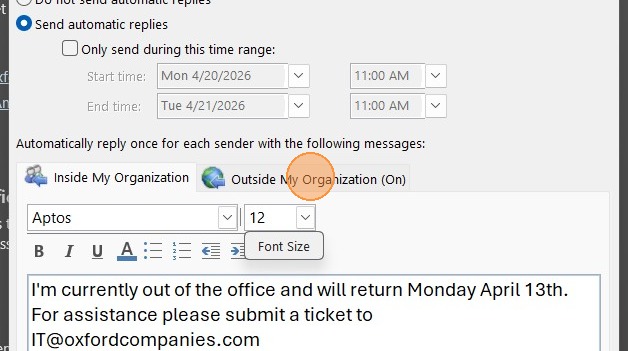
4. Click the "Outside My Organization" tab
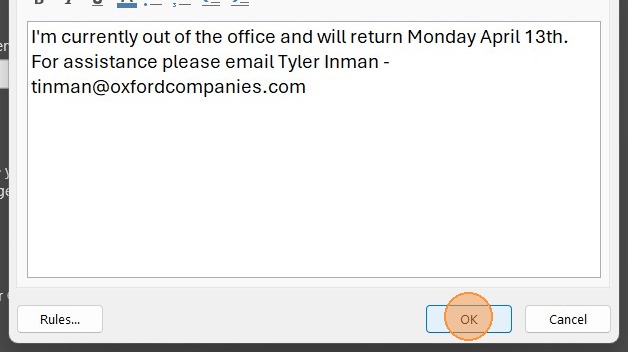
5. Click "OK" to save and enable automatic replies